


Build content automation mini-apps with Google Gemini Canvas
Press play on the video. It'll jump straight to the section that answers the
title above — no need to watch the full video.
Google Gemini
Automation
Productivity
How to build simple automation workflows (such as YouTube title and thumbnail generators) using natural language prompts in Gemini Canvas.
Advantages of Gemini Canvas vs Regular Chat
Canvas enables AI to perform 'iterative editing'. You can modify specific parts of the code or writing without needing to regenerate the entire response from scratch.
Tips for Writing App Prompts
Always specify the 'User Interface' (UI) you want. For example, ask Gemini for a 'Side-by-side layout' or 'Dark mode' to make your mini-app more visually user-friendly.
Canvas Preview Limitations
Remember that Canvas is a temporary 'sandbox' environment. If you want to save the app for long-term use, be sure to copy the code (HTML/JS) into a separate file or a platform like Replit.
More from AI-Powered Coding & App Development
View All
None
GPT-5

Syncing work context with Multi-AI workflows
Claude
Google Gemini
Run Python code simulations in Gemini Advanced
Google Gemini
Python
Build a comparison web app with Gemini Thinking Mode
Google Gemini
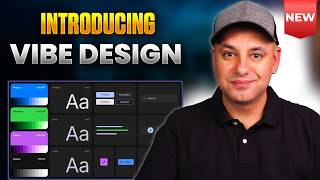
Creating Mobile App UI Designs with Google Stitch Ideate Mode
Google Stitch
Google Gemini

Analyze Sales Call Audio Recordings with Google AI Studio
Google AI Studio
Google Gemini