


Guide to running Llama 3.1 locally using LM Studio
Press play on the video. It'll jump straight to the section that answers the
title above — no need to watch the full video.
LM Studio
Llama 3.1
Installation
Privacy
Step-by-step instructions on how to download and run the Llama 3.1 model directly from your computer's hard drive offline for maximum data privacy.
Maximum Privacy Benefits
This model runs entirely on your own hardware. You can disconnect your internet connection (go offline) while using it to ensure sensitive data is never sent to any external APIs or servers.
Model Selection Tips
Always prioritize the 'Instruct version' over the base model if your goal is to perform tasks like essay writing, summarization, or coding assistance, as it has a better understanding of human instruction context.
More from Local AI & Open Source Deployment
View All
None
Docker

Automating web browser tasks with Local LLMs (Ollama) & DeepSeek
Browser Use
Ollama
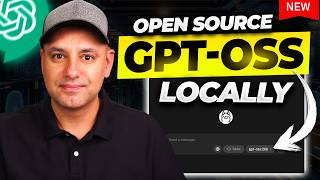
Setting up GPT-OSS models using LM Studio CLI
LM Studio
OpenAI

Configuring Context Window settings in LM Studio for better AI memory
LM Studio
OpenAI Tokenizer
Enabling Flash Attention and Quantization in LM Studio for a performance boost
LM Studio

Bypassing Llama 3.1 safety filters with jailbreak prompts
Llama 3.1
Prompt Engineering