


Setting up GPT-OSS models using LM Studio CLI
Press play on the video. It'll jump straight to the section that answers the
title above — no need to watch the full video.
LM Studio
OpenAI
Installation
Software Development
An alternative method for installing GPT-OSS models via LM Studio and the command line (terminal) for users looking for a different approach than Ollama.
Mandatory Requirement Before Using CLI
You MUST open the LM Studio application (GUI) at least once before attempting to run any 'lms' commands in the terminal; otherwise, the command will not be recognized.
Advantages of LM Studio vs Ollama
While Ollama is more user-friendly, LM Studio offers greater technical control and a visual interface (GUI) that makes it easier to manage and view your list of downloaded models.
More from Local AI & Open Source Deployment
View All
None
Docker

Automating web browser tasks with Local LLMs (Ollama) & DeepSeek
Browser Use
Ollama
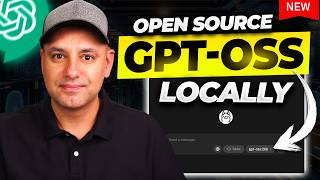
Running GPT-OSS models locally with Ollama
Ollama
OpenAI

Configuring Context Window settings in LM Studio for better AI memory
LM Studio
OpenAI Tokenizer
Enabling Flash Attention and Quantization in LM Studio for a performance boost
LM Studio
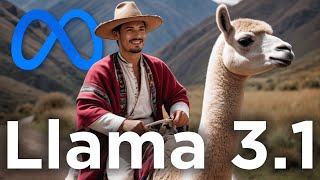
Guide to running Llama 3.1 locally using LM Studio
LM Studio
Llama 3.1