


Running GPT-OSS models locally with Ollama
Press play on the video. It'll jump straight to the section that answers the
title above — no need to watch the full video.
Ollama
OpenAI
Installation
AI Tools
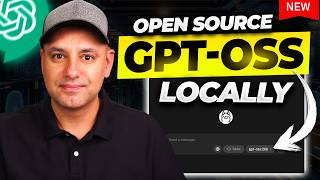
A simple guide to downloading and running open-source OpenAI (GPT-OSS) models directly on your laptop using Ollama, including web search functionality.
No Terminal Required
Unlike older versions, the latest Ollama includes a graphical user interface (GUI). You no longer need to type commands in the Terminal to run AI models.
Automatic Download Trigger
AI models aren't actually stored on your computer yet, even if they appear in the dropdown. The download only triggers automatically once you send your first message.
The Advantage of Web Search
The web search feature is a unique capability in Ollama for GPT-OSS models, allowing the AI to access real-time information that might not be available in standard local GPT models.
Local Feature Limitations
Currently, running models locally via Ollama has some limitations compared to the official ChatGPT, such as the lack of a 'file upload' function and other advanced features.
More from Local AI & Open Source Deployment
View All
None
Docker

Automating web browser tasks with Local LLMs (Ollama) & DeepSeek
Browser Use
Ollama

Install and configure Robin AI Dark Web Scraper with Docker and Tor
Robin
Docker

Run Local LLMs and Grok with OpenCode CLI
OpenCode
Grok

Install and run GPT-OSS AI models offline with Ollama
Ollama
Setting up GPT-OSS models using LM Studio CLI
LM Studio
OpenAI