


Integrating Exo Labs Local AI Cluster with Fabric CLI
Press play on the video. It'll jump straight to the section that answers the
title above — no need to watch the full video.
Exo Labs
Fabric
OpenAI API
DeepSeek
Automation
Workflow
Coding
How to connect your local AI cluster running on Exo Labs with the Fabric tool using an OpenAI-compatible API for workflow automation.
Hardware Requirements for Large Models
To run 70B models like DeepSeek smoothly, it is recommended to have at least 64GB of RAM (such as on a Mac Studio) to prevent memory swapping that could slow down performance.
Streaming API Support
Exo Labs now supports streaming output in Fabric. If text does not appear immediately, ensure your API endpoint is correctly configured to support 'stream: true'.
Benefits of Local Clusters
Using Exo Labs allows you to combine the processing power of multiple computers (Mac and Nvidia) to run models that are too large for a single machine.
More from Local AI & Open Source Deployment
View All
None
Docker

Automating web browser tasks with Local LLMs (Ollama) & DeepSeek
Browser Use
Ollama

Setting Up the Admin Account and OpenAI API
OpenWebUI
OpenAI API
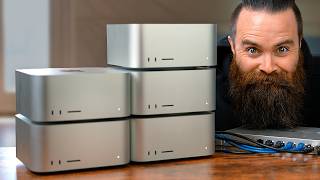
Setting up an AI Cluster on Mac with Exo Labs & MLX
Exo Labs
Python

Securing local AI by running Ollama in a Docker container
Docker
Ollama

Build Your Own Socratic AI Tutor Using Open WebUI and Custom Prompts
Open WebUI
Claude