


Setting up an AI Cluster on Mac with Exo Labs & MLX
Press play on the video. It'll jump straight to the section that answers the
title above — no need to watch the full video.
Exo Labs
Python
Git
Mac
Installation
AI Tools
A step-by-step guide to installing Python and the MLX library, and configuring Exo Labs to combine multiple Mac units into a single local AI cluster.
Network Auto-Discovery Feature
Exo Labs nodes will discover each other automatically over the local network (LAN/Wi-Fi). Ensure all Macs are on the same subnet so this 'magic' discovery process works without manual IP configuration.
OpenAI API Integration
Exo Labs provides an API compatible with the OpenAI format. This means you can connect your local AI cluster to third-party tools like Fabric or any application that supports the ChatGPT API.
Performance Boost (Teraflops)
Adding nodes to the cluster increases the total available TFLOPS. For example, a cluster of 5 Macs can match or approach the performance of high-end GPUs like the RTX 4090 for LLM inference tasks.
More from Local AI & Open Source Deployment
View All
None
Docker

Automating web browser tasks with Local LLMs (Ollama) & DeepSeek
Browser Use
Ollama
Setting up Browser Use AI Agent locally with Python & WSL
Browser Use
Python
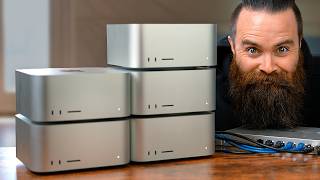
Integrating Exo Labs Local AI Cluster with Fabric CLI
Exo Labs
Fabric

How to install Ace-Step 1.5 using Git and the UV package manager
Ace-Step 1.5
Git

Build Your Own Socratic AI Tutor Using Open WebUI and Custom Prompts
Open WebUI
Claude