Claude Intelligence Brief | PandaiTech
Claude

Claude Intelligence Brief

Features

Claude Code

Description

Claude Code is a new agentic coding tool that allows you to work with code natively directly from the terminal. It is designed specifically for developers to simplify the coding process with direct integration into the environment and GitHub using the power of Claude 3.7 Sonnet.

Claude Code adalah tool agentic coding baharu yang membolehkan anda bekerja dengan code secara native terus dari terminal. Ia direka khas untuk developers bagi memudahkan proses coding dengan integrasi terus ke environment dan GitHub menggunakan kuasa Claude 3.7 Sonnet.

Step by Step
1. Ensure your account has access to this feature as it is still in the research preview phase. 2. Run Claude Code directly from your computer terminal to start interacting with project files. 3. Connect your GitHub account to allow Claude to access and understand your code repository structure. 4. Provide instructions in natural language to ask Claude to write, edit, or fix code automatically.
1. Pastikan akaun anda mempunyai akses kepada feature ini kerana ia masih dalam fasa research preview. 2. Jalankan Claude Code terus dari terminal komputer anda untuk mula berinteraksi dengan project file. 3. Sambungkan akaun GitHub anda untuk membenarkan Claude akses dan faham struktur repository code anda. 4. Berikan arahan dalam bahasa biasa untuk minta Claude tulis, edit, atau fix code secara automatik.
Tips & Tricks
• Use the Claude 3.7 Sonnet model with this tool as it is optimized for software engineering tasks. • Leverage the GitHub integration so you no longer need to manually copy paste code into the chat window. • Review the coding output produced before committing as this is an agentic tool acting on your behalf.
• Gunakan model Claude 3.7 Sonnet bersama tool ini kerana ia memang dioptimumkan untuk tugasan software engineering. • Manfaatkan integrasi GitHub supaya anda tidak perlu lagi copy paste code secara manual ke dalam chat window. • Semak output coding yang dihasilkan sebelum commit kerana ini adalah tool agentic yang bertindak bagi pihak anda.
Use Cases
• Software Engineer | Automate bug fixing and code refactoring processes directly in the terminal without switching windows. • Developer | Connect existing repositories to ask Claude to understand project context and add new features quickly. • Tech Lead | Perform quick code reviews or ask for explanations regarding complex code logic in the team repository.
• Software Engineer | Automate proses bug fixing dan refactoring code secara terus dalam terminal tanpa perlu tukar window. • Developer | Sambung repository sedia ada untuk minta Claude faham konteks project dan tambah feature baru dengan pantas. • Tech Lead | Lakukan code review pantas atau minta penjelasan tentang logic code yang kompleks dalam repository team.

Artifacts

Description

Artifacts allow you to turn ideas into interactive apps or tools directly within Claude without needing coding skills. You can start from scratch with your own prompt or remix existing examples from the library to save time.

Artifacts membolehkan anda tukar idea menjadi apps atau tools interaktif terus dalam Claude tanpa perlu ada kemahiran coding. Anda boleh mula dari kosong dengan prompt sendiri atau remix contoh sedia ada dari library untuk jimat masa.

Step by Step
1. Open the Artifacts Library to choose an existing example or type a prompt in the chat to ask Claude to build a new app. 2. Press customize or remix to enter the chat interface where Claude will generate code and display the visual artifact. 3. Interact with the artifact and ask Claude to make revisions if you want to change the function or design. 4. Click publish when ready to get a unique link and share the app with others.
1. Buka Artifacts Library untuk pilih contoh sedia ada atau taip prompt dalam chat untuk minta Claude bina app baru. 2. Tekan customize atau remix untuk masuk ke chat interface di mana Claude akan generate code dan paparkan visual artifact. 3. Berinteraksi dengan artifact tersebut dan minta Claude buat revision jika anda mahu ubah function atau design. 4. Klik publish apabila sudah siap untuk dapatkan link khas dan kongsikan app tersebut kepada orang lain.
Tips & Tricks
• View examples in the library to understand what is possible and copy their prompts as a start. • Don't worry about the code behind the scenes as you can request changes using plain language. • Use the publish feature to share your work with others even if they don't have a Claude account.
• Lihat contoh dalam library untuk faham apa yang possible dan copy prompt mereka sebagai permulaan. • Jangan risau pasal code di belakang tabir sebab anda boleh minta perubahan guna bahasa biasa sahaja. • Guna feature publish untuk share hasil kerja anda kepada orang luar walaupun mereka tiada akaun Claude.
Use Cases
• Office Manager | Build a virtual office simulation for training new staff on movement and interactions within the office. • Professional | Create a productivity tool like an email writing assistant to help write emails faster and more efficiently. • Educator | Create interactive teaching materials that allow students to engage with lesson topics visually.
• Office Manager | Bina simulasi pejabat maya untuk training staff baru tentang pergerakan dan interaksi dalam ofis. • Professional | Cipta productivity tool seperti email writing assistant untuk bantu tulis e-mel dengan lebih pantas dan efisien. • Educator | Buat bahan bantu mengajar interaktif yang membolehkan pelajar engage dengan topik pelajaran secara visual.

Writing Style

Description

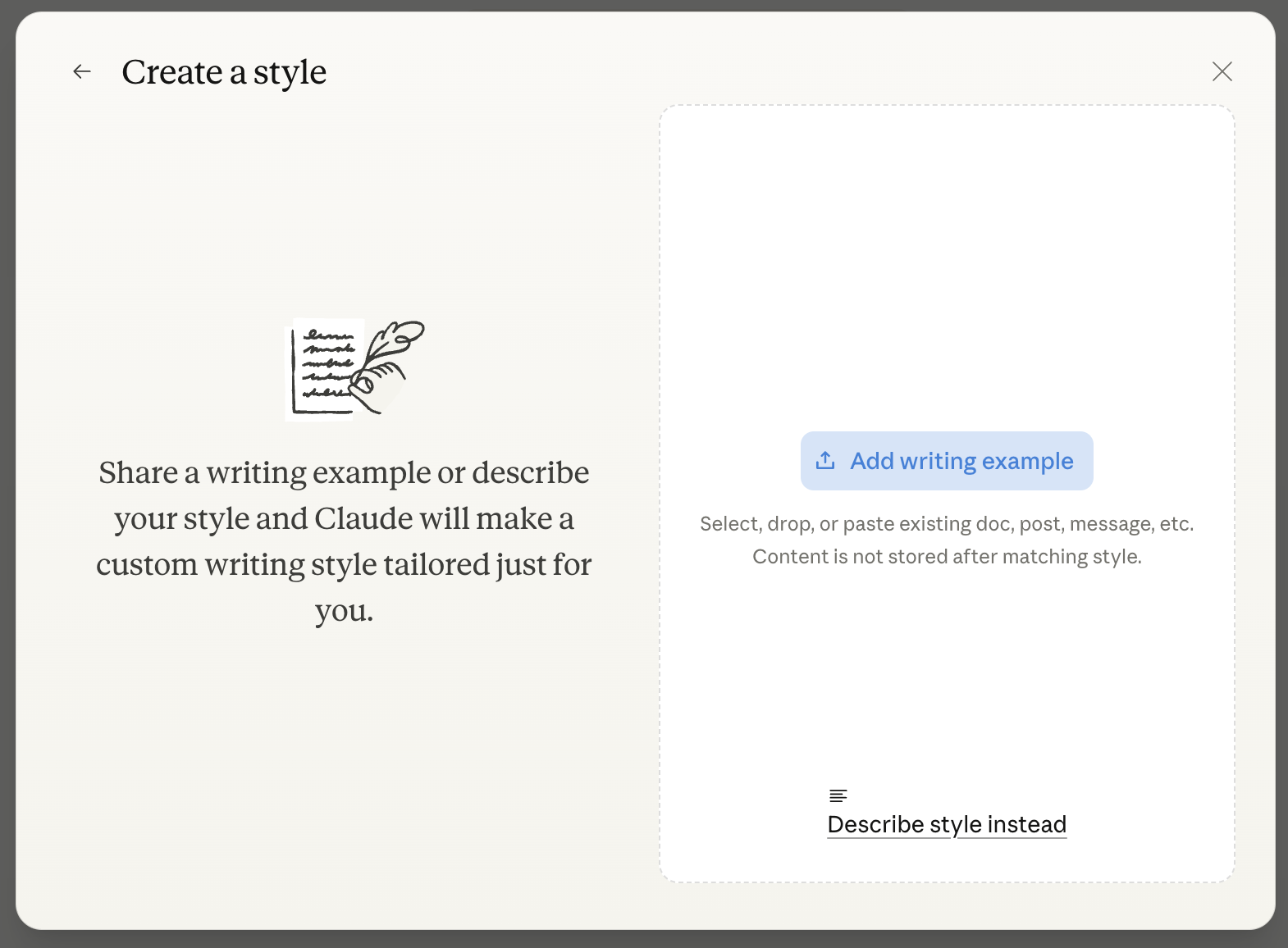
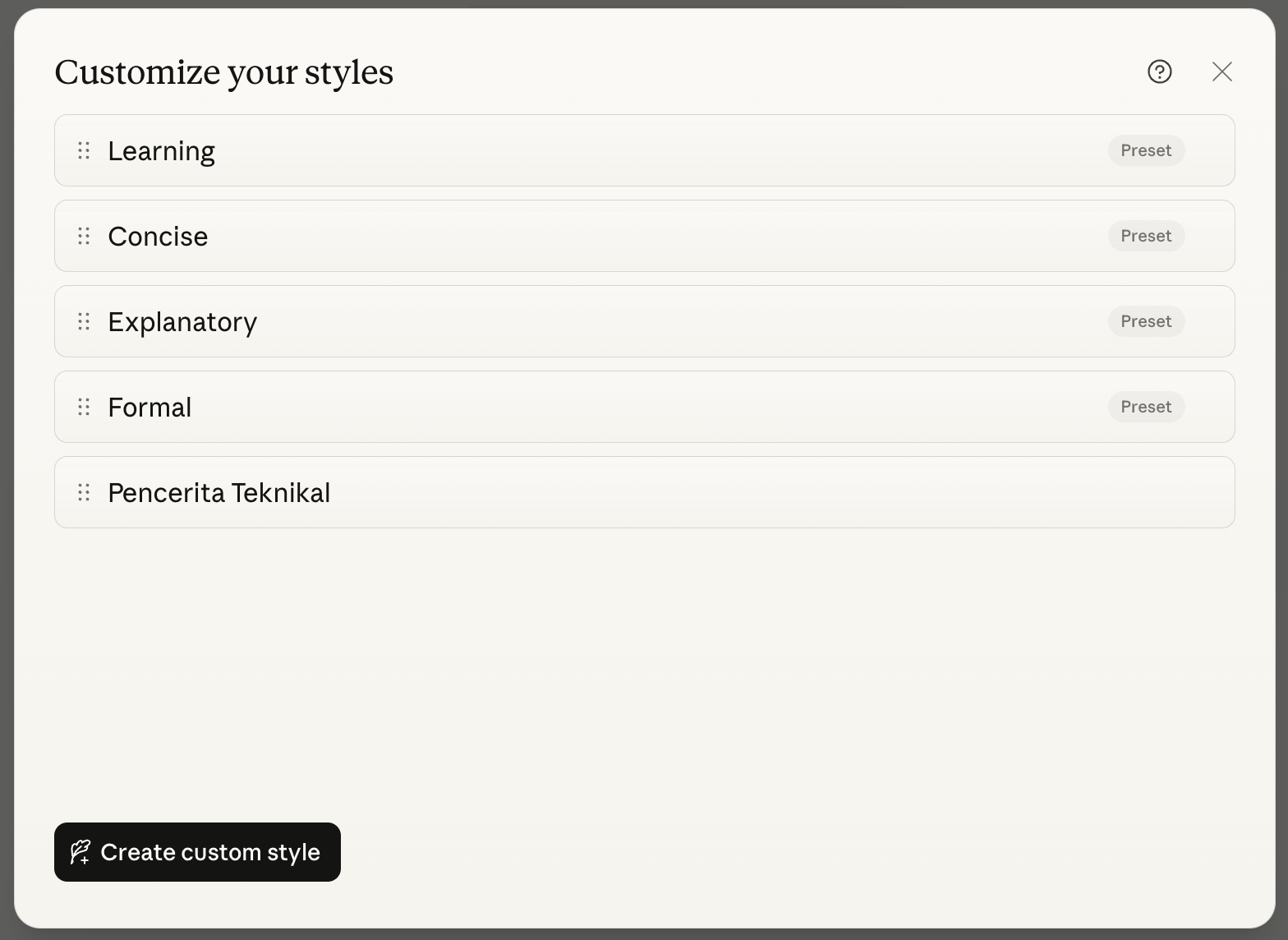
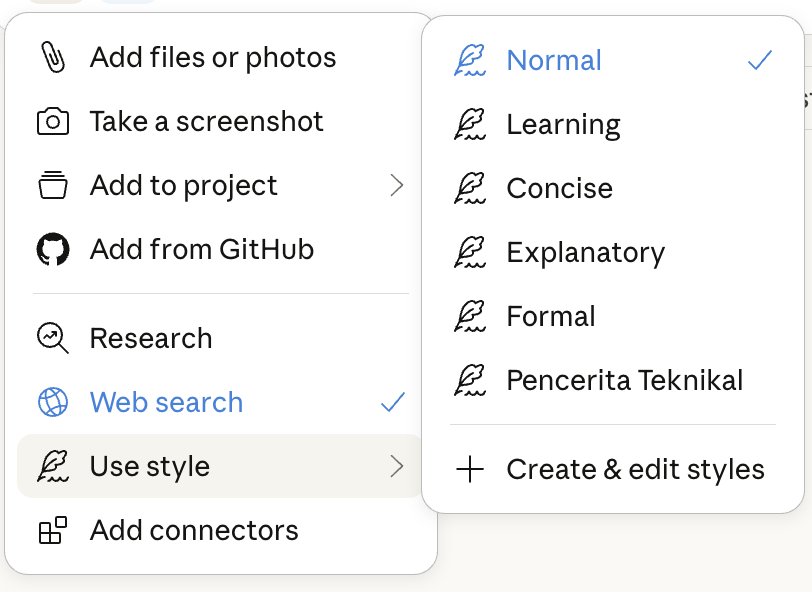
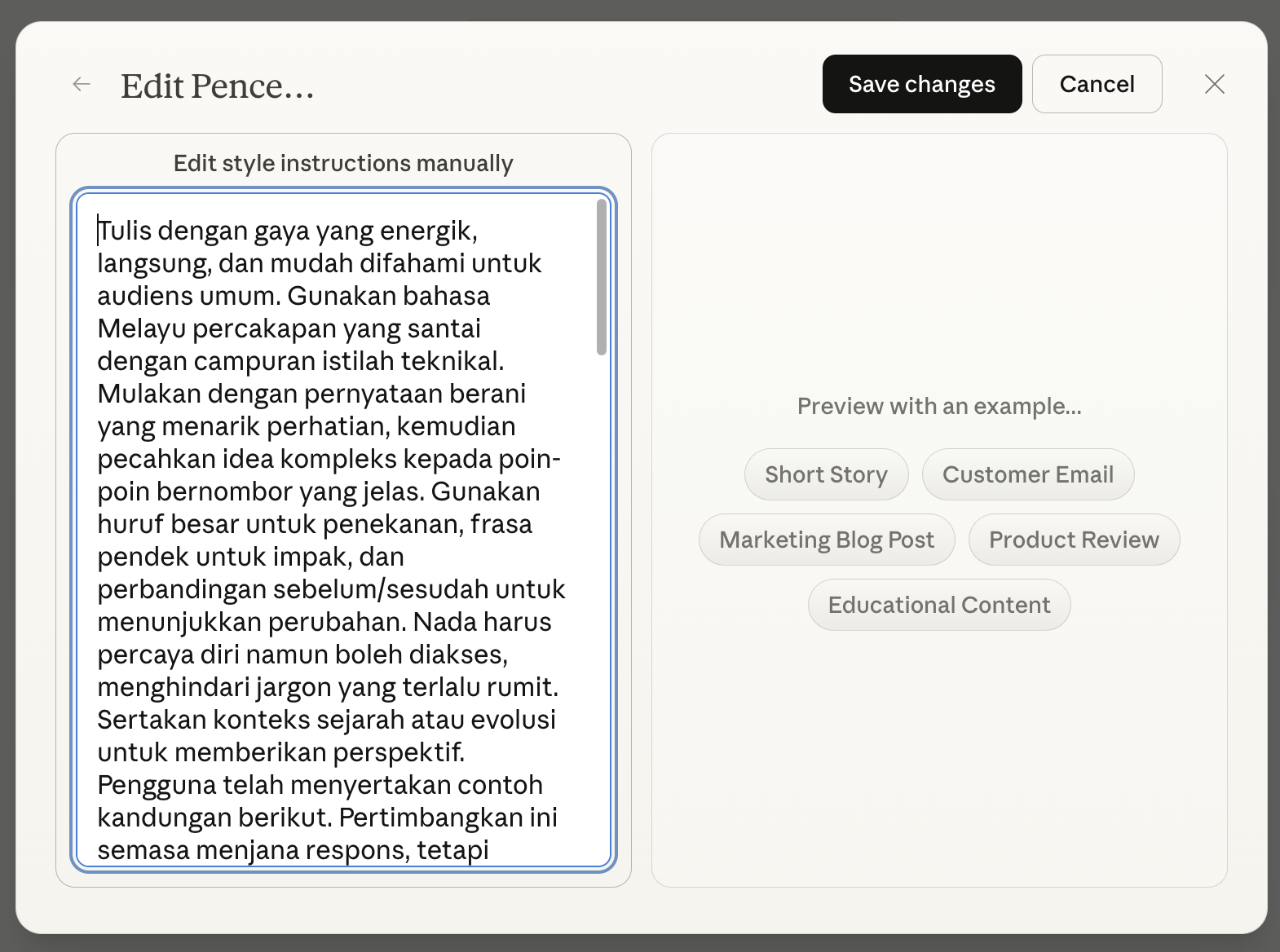
This feature allows you to set a specific writing style or select existing presets so Claude's output doesn't sound robotic or overly promotional. It is very useful because you don't need to repeat instructions regarding tone and format every time you start a new chat.

Feature ini membolehkan kau tetapkan writing style khas atau pilih preset sedia ada supaya output Claude tak bunyi macam robot atau terlalu promotional. Ia sangat berguna sebab kau tak perlu ulang arahan tentang tone dan format setiap kali nak mulakan chat baru.
Screenshots
Screenshot 1
Screenshot 2
Screenshot 3
Screenshot 4
Step by Step
1. Find the style selector menu or enter the Project instructions section to start defining how Claude responds. 2. Write specific instructions regarding the tone, expertise level, and format you want in the instructions field. 3. Include real text samples or few-shot examples so the model can mimic your writing pattern without guessing. 4. Save this setting, and Claude will automatically use that style whenever you generate new content in that project.
1. Cari menu style selector atau masuk ke bahagian Project instructions untuk mula menetapkan cara Claude menjawab. 2. Tulis arahan spesifik tentang tone, level kepakaran, dan format yang kau nak dalam ruang instructions tersebut. 3. Masukkan contoh teks sebenar atau few-shot examples supaya model ini boleh tiru pattern penulisan kau tanpa perlu meneka. 4. Simpan setting ini dan Claude akan automatik guna gaya tersebut setiap kali kau generate content baru dalam project itu.
Tips & Tricks
• Provide clear output requirements like exact word count or request lists in bullet points to avoid rambling answers. • Use negative instructions like "no corporate fluff" or "no jargon" to ensure the output sounds natural and direct. • Upload examples of your old emails or articles as references to achieve results closest to a human style.
• Bagi output requirements yang jelas seperti word count tepat atau minta list dalam bullet points untuk elak jawapan meleret. • Guna arahan negatif seperti no corporate fluff atau no jargon untuk pastikan ayat yang keluar bunyi natural dan direct. • Upload contoh email atau artikel lama kau sebagai rujukan untuk dapatkan hasil yang paling hampir dengan gaya manusia.
Use Cases
• Content Creator | Generate blog posts or captions that follow the brand voice without needing extensive editing. • Customer Service | Write apology emails to customers with an empathetic and transparent tone during a crisis. • Technical Writer | Create documentation or reports that are concise and stick to the facts without flowery language.
• Content Creator | Hasilkan blog post atau kapsyen yang ikut brand voice tanpa perlu edit banyak. • Customer Service | Tulis email minta maaf kepada pelanggan dengan nada yang empati dan transparent semasa krisis. • Technical Writer | Buat dokumentasi atau report yang padat dan terus kepada fakta tanpa ayat bunga-bunga.

Connectors

Description

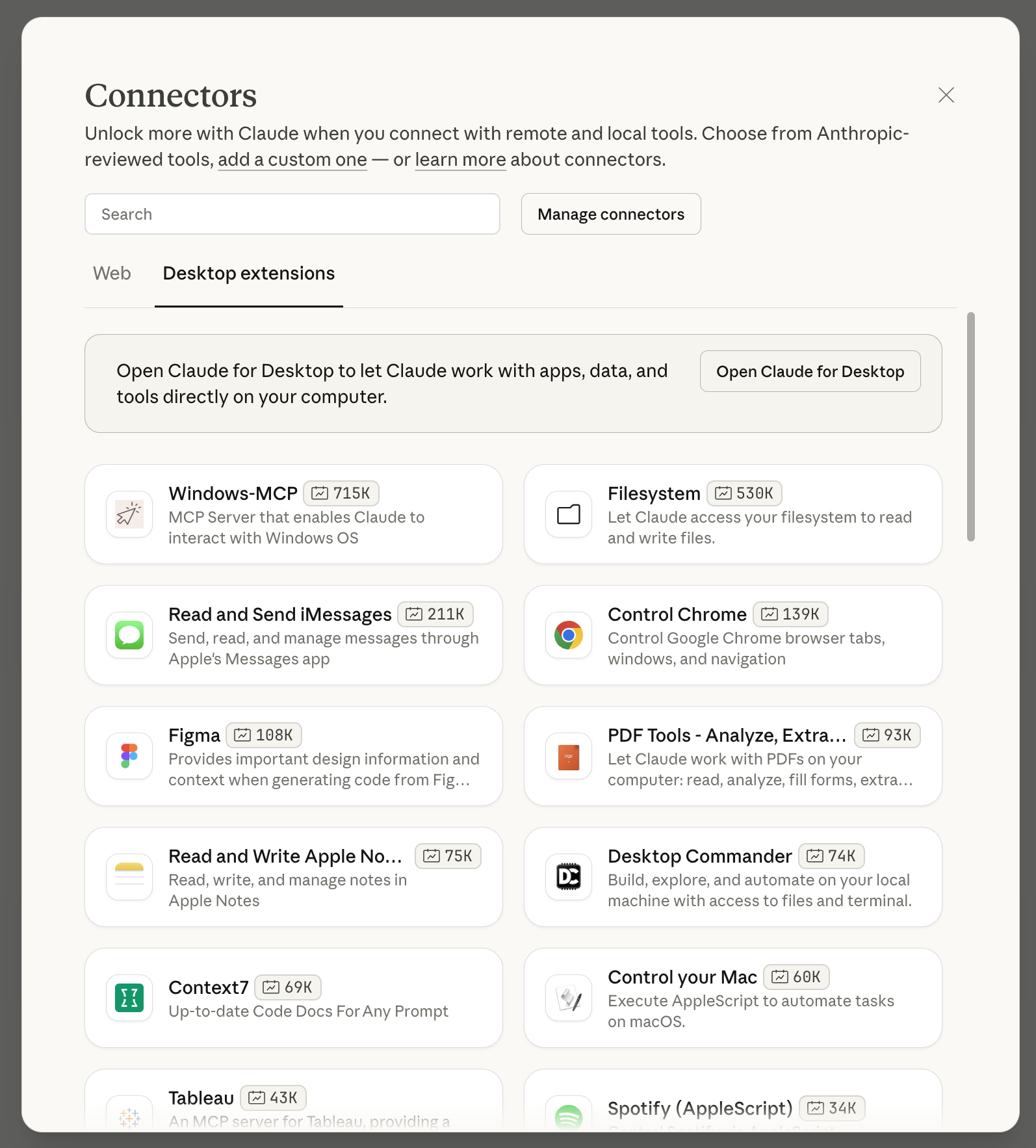
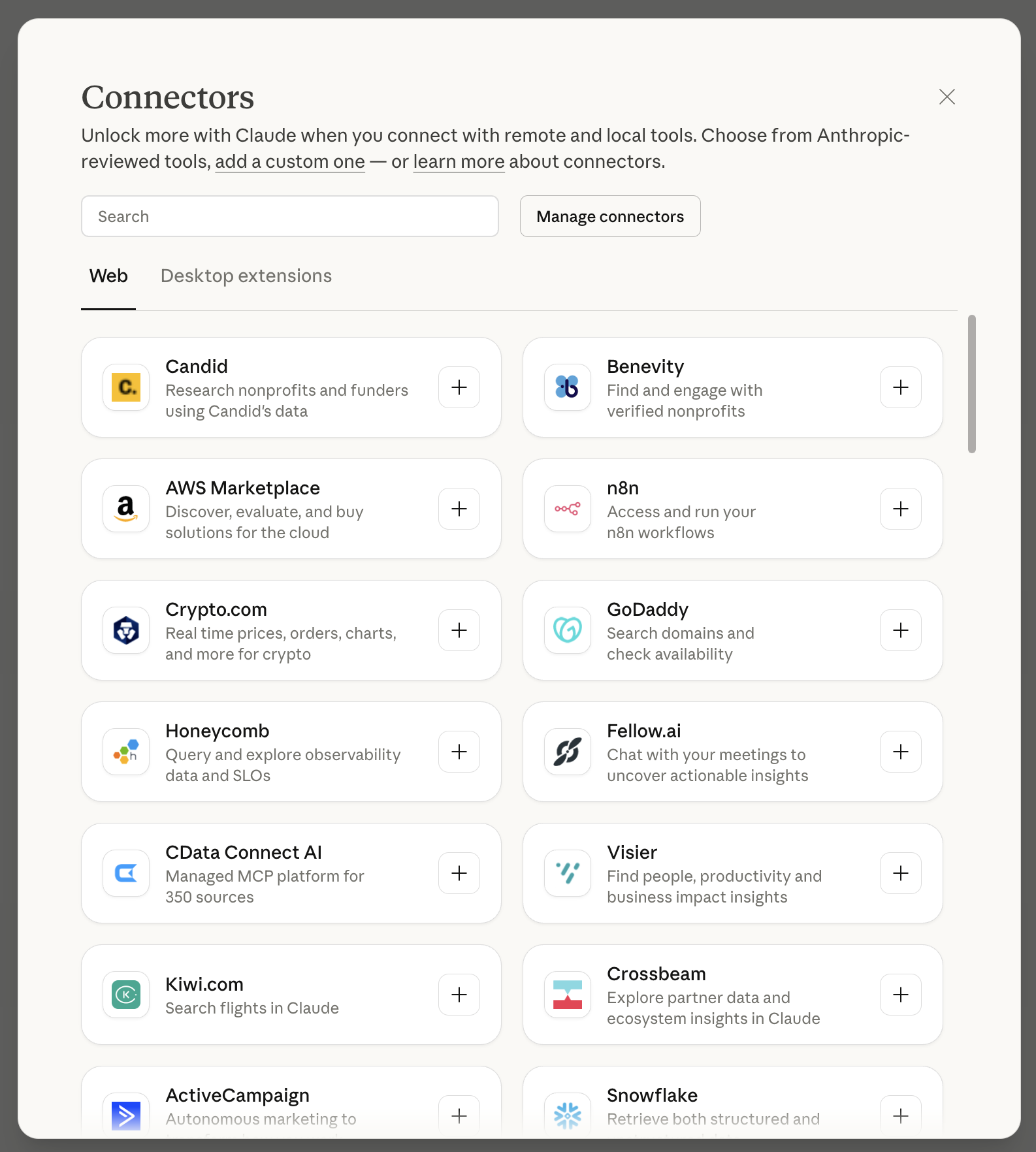
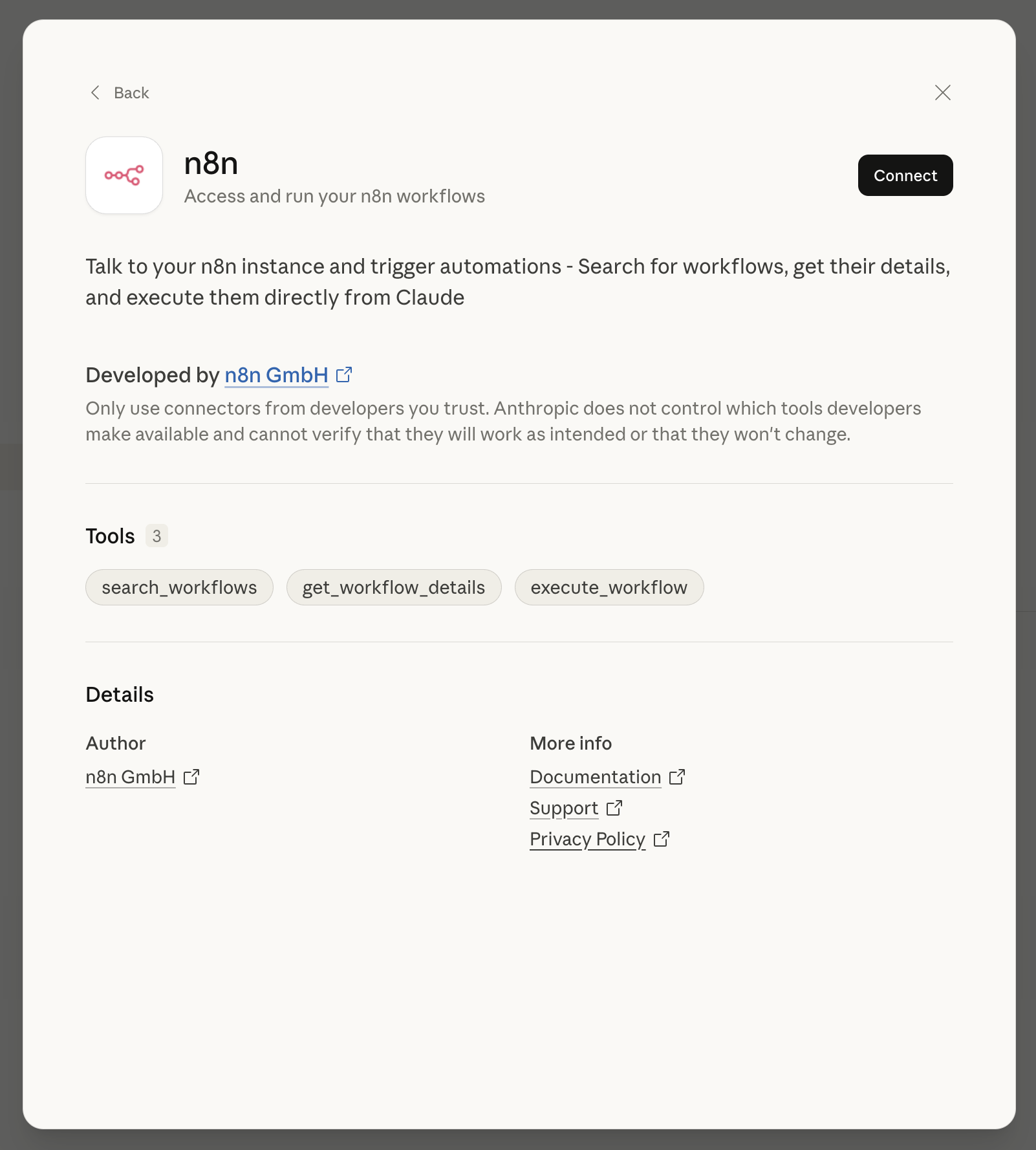
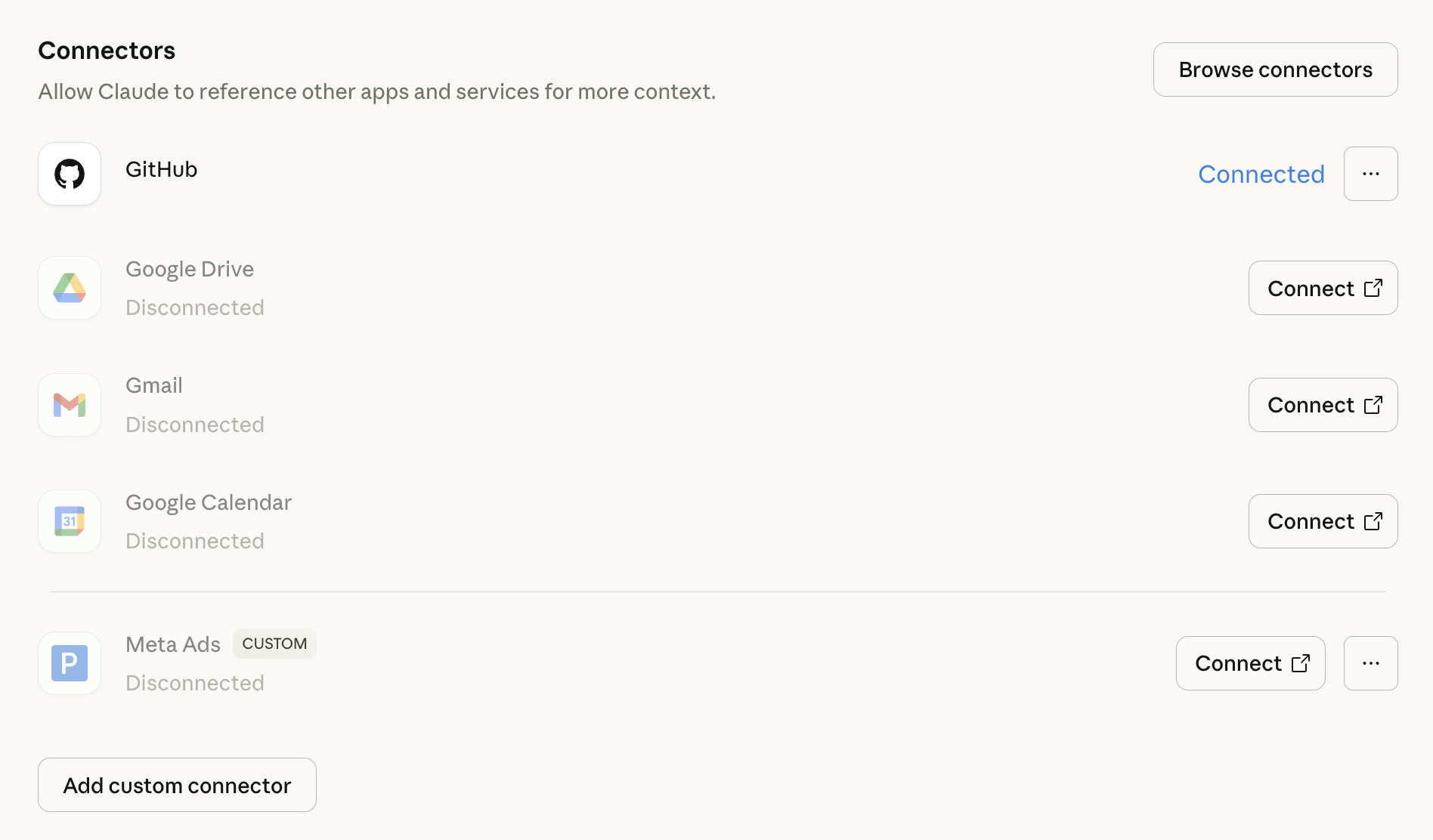
Connectors enable Claude to connect directly with external applications and files on your computer to access data and perform tasks in real-time. This makes Claude more productive as it can read documents, analyze data, and act within your favorite tools without requiring manual input.

Connectors membolehkan Claude berhubung terus dengan aplikasi luar dan fail dalam komputer anda untuk akses data serta melaksanakan tugasan secara real-time. Ini menjadikan Claude lebih produktif kerana ia boleh membaca dokumen, menganalisis data, dan bertindak dalam tools kegemaran anda tanpa perlu input manual.
Step by Step
1. Go to the bottom left of the chat window and click the search and tools button, then select add connectors. 2. Browse the list in the directory and select the application or desktop extension you want to connect. 3. Follow the displayed setup instructions to complete the configuration securely via the Model Context Protocol or MCP. 4. Once finished, test the connection by asking Claude if it has access to the tool.
1. Pergi ke bahagian bawah kiri tetingkap chat dan klik butang search and tools, kemudian pilih add connectors. 2. Lihat senarai dalam directory dan pilih aplikasi atau desktop extension yang anda mahu sambungkan. 3. Ikut arahan setup yang dipaparkan untuk selesaikan konfigurasi secara selamat melalui model context protocol atau MCP. 4. Selepas siap, uji sambungan dengan bertanya kepada Claude jika ia mempunyai akses kepada tool tersebut.
Tips & Tricks
• You can control access levels or disable this function at any time via the manage connectors menu for added privacy. • If Claude does not automatically use info from the connector, add specific instructions in your prompt to force it to refer to that source. • Combine this function with existing templates to automate complex work like converting meeting notes into organized project tasks.
• Anda boleh kawal tahap akses atau matikan fungsi ini bila-bila masa melalui menu manage connectors untuk privasi tambahan. • Jika Claude tidak menggunakan info dari connector secara automatik, tambah arahan spesifik dalam prompt anda untuk paksa ia merujuk sumber tersebut. • Gabungkan fungsi ini dengan template sedia ada untuk automate kerja rumit seperti menukar meeting notes kepada tugasan projek yang tersusun.
Use Cases
• Product Manager | Pull completed sprint tickets from Linear and generate professional release notes following company templates. • Business Analyst | Connect spreadsheet data files for Claude to analyze trends and generate executive reports quickly. • Developer | Let Claude access technical documentation or source code to help debug and write project documentation automatically.
• Product Manager | Tarik tiket sprint yang siap dari Linear dan hasilkan release notes profesional mengikut template syarikat. • Business Analyst | Sambungkan fail data spreadsheet untuk Claude analisis trend dan jana laporan eksekutif dengan pantas. • Developer | Biarkan Claude akses dokumentasi teknikal atau kod sumber untuk bantu debug dan tulis dokumentasi projek secara automatik.

Skills

Description

Skills are like organized folders that allow you to provide specific expertise or domain expertise to Claude to perform actual work. It functions automatically when needed, so you can store extensive expertise without filling up the context window from the start.

Skills ni macam folder tersusun yang membolehkan korang bagi kepakaran khusus atau domain expertise kepada Claude untuk buat kerja sebenar. Ia berfungsi secara automatik bila perlu, jadi korang boleh simpan banyak kepakaran tanpa memenuhkan context window dari awal.

Step by Step
1. At startup, the system only loads the name and description of each installed skill, consuming about 30 to 50 tokens only. 2. When your prompt matches the skill description, Claude dynamically loads the full skill.md file into the context. 3. If the skill requires additional files like scripts or other assets, they will be downloaded and executed progressively as needed. 4. You can use the same skills across different platforms including Claude Code, API, and claude.ai.
1. Masa startup, sistem cuma akan load nama dan description setiap skill yang diinstall, yang memakan sekitar 30 hingga 50 tokens sahaja. 2. Bila prompt korang sepadan dengan description skill tersebut, Claude akan load file skill.md sepenuhnya ke dalam context secara dinamik. 3. Jika skill itu memerlukan fail tambahan seperti skrip atau aset lain, ia akan dimuat turun dan dijalankan secara berperingkat mengikut keperluan. 4. Korang boleh guna skill yang sama merentas platform berbeza termasuk Claude Code, API, dan claude.ai.
Tips & Tricks
• Do not limit yourself to text instructions only; you can include files like PowerPoint templates, code, helper scripts, or image assets. • Combine Skills with ClaudeMD files and MCP servers to make your workflow smarter and connected to external data. • Leverage progressive disclosure to install many skills simultaneously for complex tasks without worrying about the context window becoming heavy.
• Jangan terhad pada teks arahan saja, korang boleh masukkan fail seperti template PowerPoint, kod, skrip helper, atau aset gambar. • Gabungkan Skills dengan ClaudeMD files dan MCP servers untuk jadikan workflow korang lebih pintar dan bersambung dengan data luar. • Manfaatkan progressive disclosure untuk install banyak skill serentak untuk tugasan kompleks tanpa risau context window jadi berat.
Use Cases
• Team Lead | Help onboard new employees to understand team coding standards quickly. • Developer | Ensure every Pull Request (PR) adheres to specific security best practices. • Data Analyst | Share and align data analysis methodologies with the entire team.
• Team Lead | Bantu onboard pekerja baru untuk faham standard coding team dengan pantas. • Developer | Pastikan setiap Pull Request (PR) mematuhi security best practices yang spesifik. • Data Analyst | Kongsi dan selaraskan metodologi analisis data dengan seluruh pasukan.

Claude in Chrome

Description

Claude for Chrome brings the power of the Sonnet 4.5 model directly to your browser to help solve complex tasks across multiple tabs. It can understand context, find information from emails or documents, and update your work in real-time without manual effort.

Claude for Chrome bawa kuasa model Sonnet 4.5 terus ke browser anda untuk bantu selesaikan tugasan yang rumit merentas pelbagai tab. Ia boleh faham konteks, cari maklumat dari email atau dokumen, dan update kerja anda secara real-time tanpa perlu buat manual.

Step by Step
1. Go to claude.ai/chrome and install this extension to start using the computer use feature in the browser. 2. Give instructions to Claude, for example, to organize a renovation budget scattered across emails and planning documents. 3. Allow Claude to gather context by searching for receipts or relevant info from the tabs you currently have open. 4. Watch Claude update spreadsheets and draft emails automatically, then review the work results before you confirm.
1. Pergi ke claude.ai/chrome dan pasang extension ini untuk mula guna feature computer use dalam browser. 2. Berikan arahan kepada Claude, contohnya untuk susun bajet renovasi yang berterabur dalam email dan dokumen planning. 3. Benarkan Claude kumpul konteks dengan mencari resit atau info relevan dari tab yang sedang anda buka. 4. Lihat Claude update spreadsheet dan draft email secara automatik, kemudian review hasil kerja itu sebelum anda sahkan.
Tips & Tricks
• Ensure all tabs containing important info such as receipts or emails are already open so Claude can access that data. • Although Claude works automatically, always check the figures in the spreadsheet or sentences in the email before pressing send. • Use this feature when your project information is scattered in many different places to save organizing time.
• Pastikan semua tab yang mengandungi info penting seperti resit atau email sudah dibuka supaya Claude boleh akses data tersebut. • Walaupun Claude buat kerja secara automatik, sentiasa semak angka dalam spreadsheet atau ayat dalam email sebelum tekan send. • Gunakan feature ini bila maklumat projek anda bersepah di banyak tempat berbeza untuk jimatkan masa organizing.
Use Cases
• Homeowner | Combine renovation costs from various contractor emails directly into a budget spreadsheet. • Project Manager | Find status updates from planning documents and team communications to generate the latest report. • Admin Assistant | Draft official emails to partners by referring directly to files and data available in the browser.
• Homeowner | Gabungkan kos renovasi dari pelbagai email kontraktor terus masuk ke dalam spreadsheet bajet. • Project Manager | Cari status update dari dokumen perancangan dan komunikasi team untuk hasilkan laporan terkini. • Admin Assistant | Draft email rasmi kepada partner dengan merujuk terus kepada fail dan data yang ada dalam browser.

Projects

Description

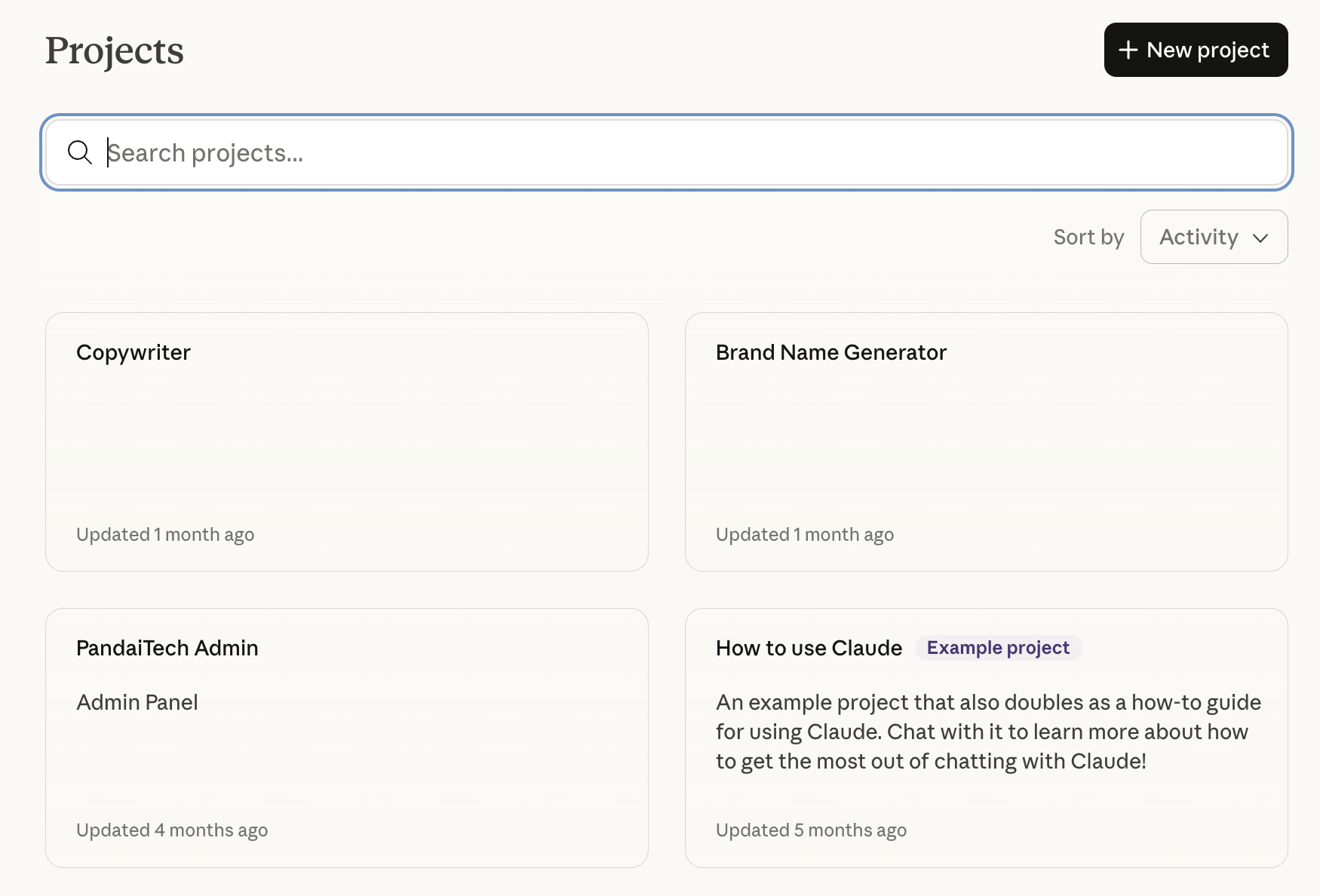
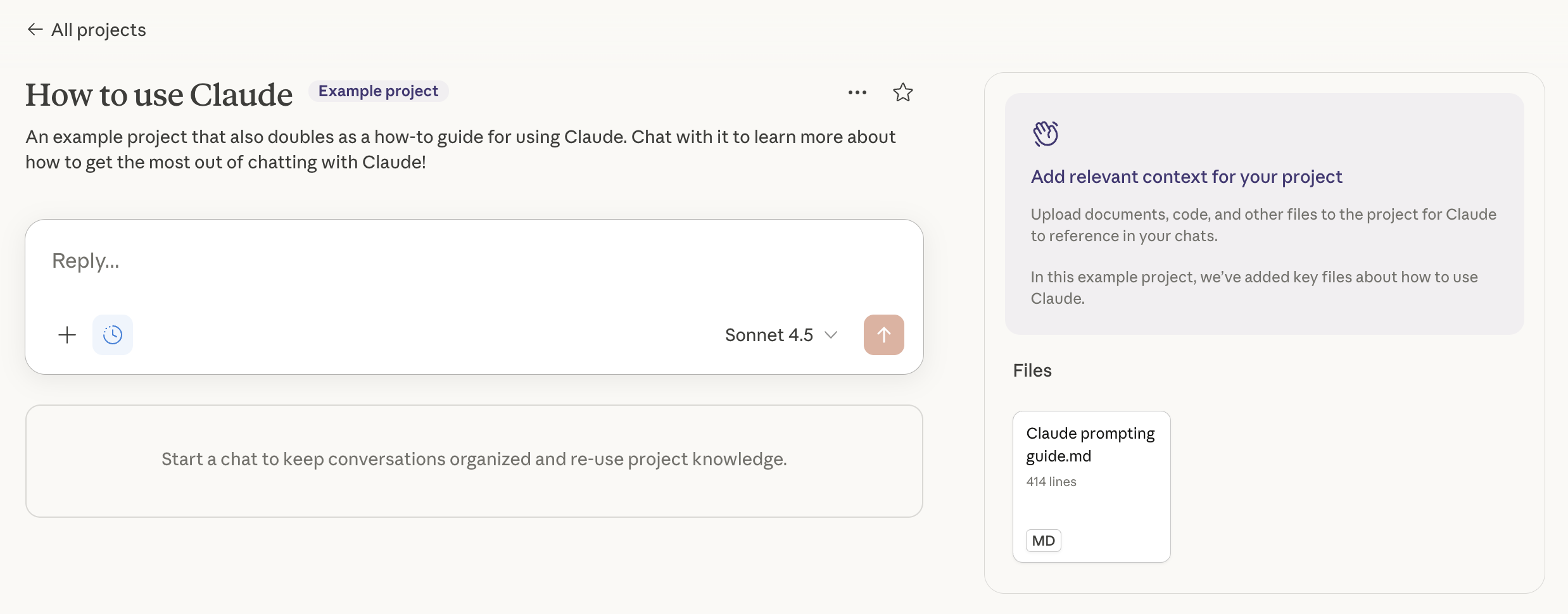
Projects allow you to create separate workspaces with their own chat history, knowledge base, and settings. This feature makes Claude smarter as it can directly reference specific documents and context you provide to deliver answers more relevant to your goals.

Projects membolehkan anda mencipta ruang kerja berasingan yang mempunyai chat history, knowledge base dan tetapan tersendiri. Ciri ini menjadikan Claude lebih bijak kerana ia boleh merujuk terus dokumen dan konteks spesifik yang anda berikan untuk memberikan jawapan yang lebih relevan dengan matlamat anda.
Step by Step
1. Click the New Project button, name the project, and write a brief description of what you want to achieve. 2. Press Create Project and then set the visibility, either for personal use or shared with the team. 3. Go to the Instructions section to set the tone, expertise level, and response style you want from Claude. 4. Upload important documents into Project Knowledge so Claude can automatically use that information in every conversation.
1. Klik butang New Project, letakkan nama projek dan tuliskan deskripsi ringkas tentang apa yang anda ingin capai. 2. Tekan Create Project dan kemudian tetapkan visibility sama ada untuk kegunaan peribadi atau dikongsi bersama team. 3. Masuk ke bahagian Instructions untuk menetapkan tone, tahap kepakaran dan gaya jawapan yang anda mahukan daripada Claude. 4. Muat naik dokumen penting ke dalam Project Knowledge supaya Claude boleh menggunakan maklumat tersebut secara automatik dalam setiap perbualan.
Tips & Tricks
• Click the Star button on main projects so they stay at the top of the sidebar for quick access. • Leverage retrieval augmented generation capabilities by uploading many documents, as Claude can process large amounts of information without issues. • Use the instructions space to define specific output formats so you don't have to repeat the same prompts every time you chat.
• Tekan butang bintang atau Star pada projek utama supaya ia kekal di bahagian atas sidebar untuk akses pantas. • Manfaatkan keupayaan retrieval augmented generation dengan memuat naik banyak dokumen kerana Claude boleh memproses maklumat yang besar tanpa masalah. • Gunakan ruang instructions untuk menentukan format output yang spesifik supaya anda tidak perlu mengulang arahan yang sama setiap kali chat.
Use Cases
• Product Manager | Managing the new product development cycle from the ideation phase through to market launch in one place. • Content Creator | Generating content ideas, getting writing assistance, and ensuring all output adheres to company brand guidelines. • Educator | Organizing course materials, explaining complex concepts, and continuously improving learning content.
• Product Manager | Menguruskan kitaran pembangunan produk baru dari fasa ideation sehinggalah ke pelancaran pasaran dalam satu tempat. • Content Creator | Menjana idea konten, mendapat bantuan penulisan dan memastikan semua output mematuhi brand guidelines syarikat. • Educator | Menyusun bahan kursus, menerangkan konsep yang rumit dan menambah baik kandungan pembelajaran secara berterusan.

Models

What This Model Excels At
S Best At
Finance & Business Healthcare Instruction Following Expert Tasks Project & Operations Management Sales & Customer Service Creative Writing
A Excellent At
Engineering & Manufacturing Mathematics & Logic Media & Communications Real Estate Coding & Programming Legal & Compliance Social Services
#1 At
LMArena
Expert, Longer Query
GDPval
Compliance Officers, Financial Sales, Healthcare Managers, Industrial Engineers, Investigators, Office Supervisors, Operations Managers, Order Clerks, Producers, Rental Clerks, Sales Supervisors, Software Developers
What This Model Excels At
S Best At
Media & Communications
A Excellent At
Project & Operations Management Real Estate Creative Writing Expert Tasks Coding & Programming Instruction Following Social Services
B Good At
Engineering & Manufacturing Sales & Customer Service Healthcare Finance & Business Legal & Compliance
#1 At
GDPval
Pharmacists, Production Supervisors, Wholesale Sales
What This Model Excels At
A Excellent At
Legal & Compliance Finance & Business
B Good At
Coding & Programming Real Estate Instruction Following Healthcare Media & Communications Project & Operations Management Engineering & Manufacturing Sales & Customer Service Social Services Creative Writing
What This Model Excels At
S Best At
Instruction Following Expert Tasks
A Excellent At
Mathematics & Logic Coding & Programming
B Good At
Creative Writing
#1 At
LMArena
Coding, Instruction Following
What This Model Excels At
A Excellent At
Instruction Following Expert Tasks Coding & Programming Mathematics & Logic
B Good At
Creative Writing
What This Model Excels At
A Excellent At
Instruction Following
B Good At
Coding & Programming Creative Writing Mathematics & Logic Expert Tasks

Compare With